
I’ve been using Windows Live Writer off and on for the past few months, and overall I’m happy with it. It’s great for off-line posting. I recently upgraded to the latest version, and found this interesting graphic in the installer package:

Intro
Microsoft has just released the latest technical preview for Windows Live Writer. I didn’t check out the previous version, which is probably good for me since there were some Blogger integration issues. From all accounts, these issues appear to be resolved in this preview version, so let’s get down to brass tacks. I’m currently publishing through several mediums – cell phone, desktop (Blogger.com), and Picasa. I publish a handful of blogs, but mostly just Valence. I don’t expect Live Writer to handle cell phone publishing, obviously, so we can ignore that. My main use for Live Writer would be to use client-side publishing of both text and images – replacing the combo of web-based Blogger.com and client-based Picasa. I’m sure that anybody who uses Picasa’s publish to Blogger knows that the interface is less than great, for certain.
First Time
Firing up Live Writer for the first time leads you through a simple process by which Live Writer connects to your blog and sucks down the template, which allows you to instantly preview your post – very cool!
Authoring
When it’s time to author, you get a blank window, basically. It’s a tad disconcerting coming from the usual rich-text toolbar and text box. But, it works. You can just start entering text, formatting it, etcetera. Spelling errors are highlighted with the usual red squiggly underline. And, you get CSS-style formatting using familiar Word conventions (e.g. Heading 1 – Heading 6 and Paragraph). Keep in mind the heading formats are based on your template, so in this case, Heading 1 doesn’t look too good – I’m sticking with Heading 2.
Inserting Pictures
Inserting pictures is very straight-forward. Click Insert Picture, select the picture and bam:


I didn’t show all the available borders, but the highlights: reflection, photopaper, drop shadow, and rounded corners. There’s also a solid color pixel border of 1px or 3px (not shown). Photo upload to your picasaweb.google.com account, which is nice. A++ on this feature.
Inserting Maps
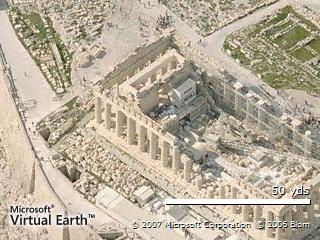
I’m not sure how much I’d really use this feature, but just the fact that I can is very smooth. It is tied into Microsoft Virtual Earth, which isn’t so bad, but it works very seamlessly – also a good feature.

Other Niceties
Inserting HTML tables is pretty simple with a dialog that allows you to pick some simple stuff.
| Heading | Value |
| Yeah, | It’s a Table |
Inserting Video
There is built-in support for inserting URL-based video from YouTube and GoogleVideo hosting – I’m a Tube guy myself, so that’s what I’m looking for. It’s pretty simple. My only beef is that I have to always add “&rel=0” to the end of the embedded source to prevent showing “related” videos at when the actual video is over. Sometimes, as you know, related videos aren’t really related. Do I really need to see boobs after my kids’ videos?

So the video is embedded, but does it include the rel=0? We’ll see.
Parting Words
You can add custom-written plugins, which I’ll look at later. Otherwise, we’ll see what this looks like after publishing.
UPDATE:
Looks like the YouTube embedding does include the rel=0 key pair so you won’t have to see the “related” videos. The inserted maps layout is a little wonky when captions are used, but the pushpin properties carry over when you click through the map.
I didn’t mention it previously, but the Blogger Label support in WLW is pretty sweet – known as Categories, the list is dynamically read from Blogger’s servers. You can also add labels from WLW.
I've been using Amazon's S3 (Simple Storage Service) for some time now as an off-site backup solution. It's been a great service, utilizing a number of free and formerly-free tools for performing automatic backups. The problem? Well, over time I'm storing more and more data -- and using S3 you pay for how much you use, and how much you transfer.
I finally hit the mark where the pay-for-play model exceeds the cost of an all-you-can-eat model (a la MozyHome). So as of this evening, I've ditched S3 in favor of MozyHome. In time, this should be a good decision since I don't plat on curtailing the amount of data I'm backing up.
So long S3, and thanks for all the memory. Literally.
PS. If you're storing less than 50GB, and don't plan on doing much more than daily incremental backups, S3 is probably good for you. When you inch past that mark, you should probably consider another option
So I have a bit of a dilemma: how do I get my pictures and videos shared around the various media consumers in the house? Currently I have 3 computers (work, mine, Stephanie's) and then there's the XBox 360. I have all of this stuff sitting on a ½ TB external hard drive. I had, at one time, a Windows Server 2003 machine that sat in my living room and was connected to the network. That went ok for a while, but for some reason I decided to get rid of it. Probably because I was thinking about ripping DVDs and streaming them to the TV. More on that later.
Anyway, so I then put my gaming PC up here, but it is rather large, and grossly conspicuous, akin to a Honda Civic with neon lights, purple-sparkled paint, a 3-wing spoiler and a loud obnoxious exhaust system. Except that the PC is black and doesn't have a spoiler, otherwise they are about the same. Alas, she was too big for the living room and actually too loud -- for some reason I'm a fan freak, so the PC has 4 fans in it -- and thus was removed to my office for more cave-like gaming.
As of now, I think I have abandoned the streaming ripped DVDs idea -- I ripped a few but never did anything with them, so that tells me I need to remove that from my list of requirements. I procured a laptop that is relatively new and it is currently hidden in the living room with the ½ TB drive hanging off of it. This particular laptop was defunct but with a new hard drive it's functioning perfectly. Now there's the whole business of sharing the media... for some reason Steph has problems maintaining a mapped drive (she's running Vista) to the shared drive on the media server laptop. I sometimes have problems with it as well. It's running XP Pro, and should be doing just fine... perhaps I just haven't spent enough time getting it set up properly.
I also need to get JungleDisk running on it again to use for my off-site backups. Oh, and before you ask, yes, I really need to keep this on it a Windows machine. Using the Xbox 360 as a media extender is really pretty smooth - more so that I would've thought, as it does pictures, video and music. Except it doesn't play AVI files captured from my Canon cameras... a bit of a bummer there.
My next idea was to try out Windows Home Server. There's a free trial DVD on its way to me as we speak and that could be interesting.
Any other ideas?
Powered by Jott
I've gotten quite a few questions along the lines of "how do I get pictures and/or video off of the blog?" Here's a short tutorial.
If it's a "regular" blog picture (meaning, you click on a picture and it opens in the same window but in a larger size), then you only need to right-click on the picture and select "Save Picture As...". Once you do this, you'll get another dialog box that asks where you want to save the picture and what you want to name it. Simply supply the folder and file name, and you'll have the picture!
If it's a "picasa" blog picture (meaning, you click on a picture and it opens the Picasa web site photo album), then you have a few steps. Once you have opened the album, you can download the entire album by clicking the "Download this album" link, that is on the left-hand side of the album. You'll also note the Picasa download link represented by the Picasa icon to the right of the link - click this to download Picasa, which you'll need if you want to download entire albums. If you want just a single picture, once the album is opened, find the picture you want and click it. You'll see a larger version of the picture, and there is a link on the right-side of the display that says "download this picture". Click the link, and then select the location and filename and click okay. That's it!
If you want to download video... well that's a bit more complicated. First, find the video in the blog. Click it to play. Fast-forward to the end. Once you get the ending frame that says "replay", click the menu button in the lower-right corner. You'll see two options: embed and url. Click "copy to clipboard" under the "url" section. Then, open a browser window to www.keepvid.com. Click inside the text-box, and then press CTRL-V, or right-click and select Paste. That will put in the URL to the video. Then, select "YouTube" and click the "Download" link. This will enable an option below that says ">> Download <<". Right-click this link and select "Save Target As...". You must save this file as a .flv file, but you can name it whatever you want, such as "maya sleeping.flv". Click OK and the video will download. You will need a special player to view these - I recommend VLC Player - available here.
And no, I'm not talking about gestational control. Sheesh. Get out of the gutter, people. For all my bitching about the iPhone, there is one piece of tech that I hope lives on even if the iPhone becomes another Newton - multi-touch controls.
Anybody who has seen Minority Report knows what I'm talking about: the scenes where Tom Cruise uses an interface that consists of a reflective display screen and his fingertips to manipulate images and interact with data. I always felt that was really cool.
Well, seems other people think it's cool too and I am drooling in anticipation when they announce that the tech is available. Me? I'm just waiting for an input device that allows 3rd party application development with a free API.... so I can plug that up to my PC and have fun video or photo editing. Or writing blog entries - wait, maybe forget that last one.
Still don't know what I'm talking about? Try this and this.

